Instructions for OnePlus devices
WARNING: Your run tracking will not work properly if these settings are not configured correctly. Please follow the instructions carefully.
Follow these setup steps for your OnePlus device:
Battery Settings
OnePlus “Smart” battery optimization will pause the app if the screen is off for an extended period. You must set this to manual:
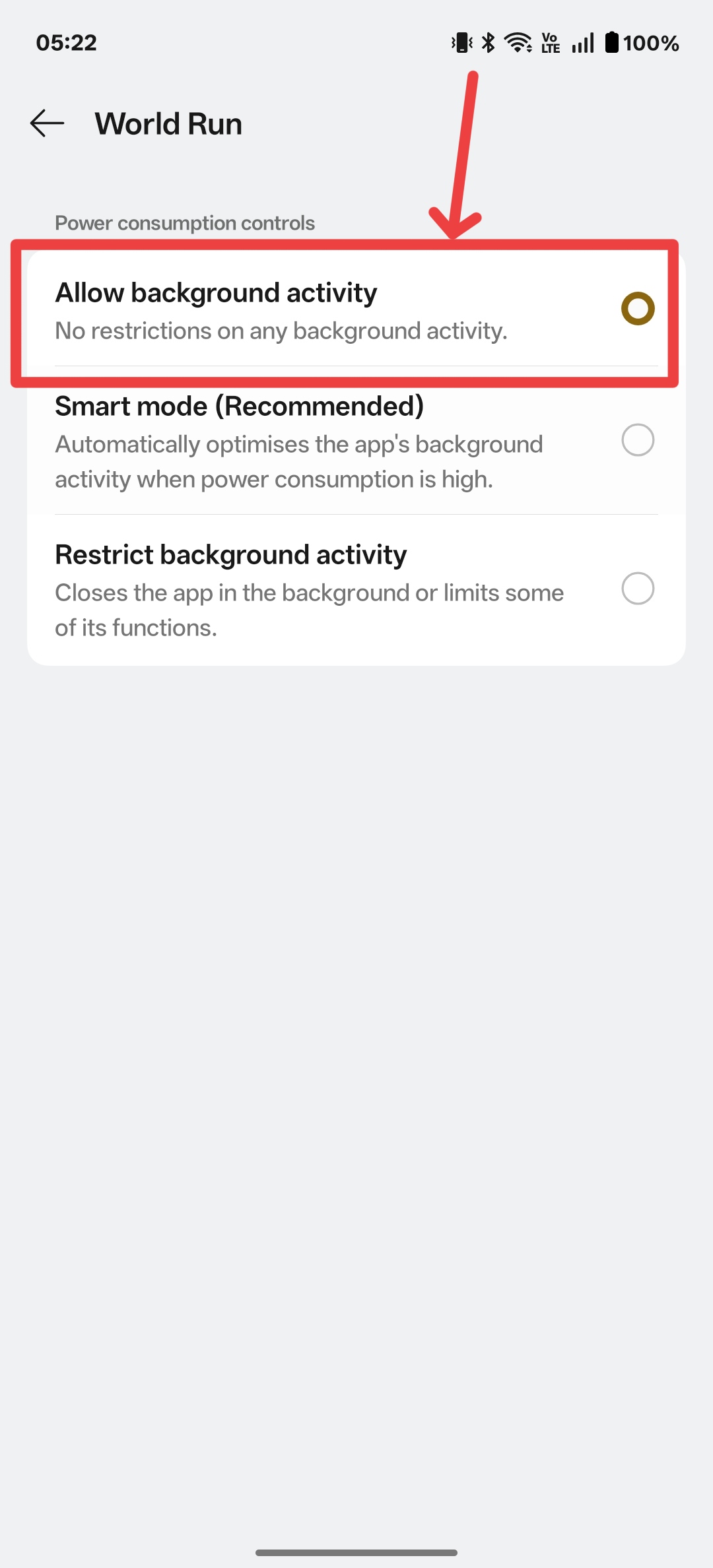
- Allow Background Activity:
- Go to Settings > Apps > App management > World Run.
- Tap on Battery usage.
- Toggle Allow background activity to ON.
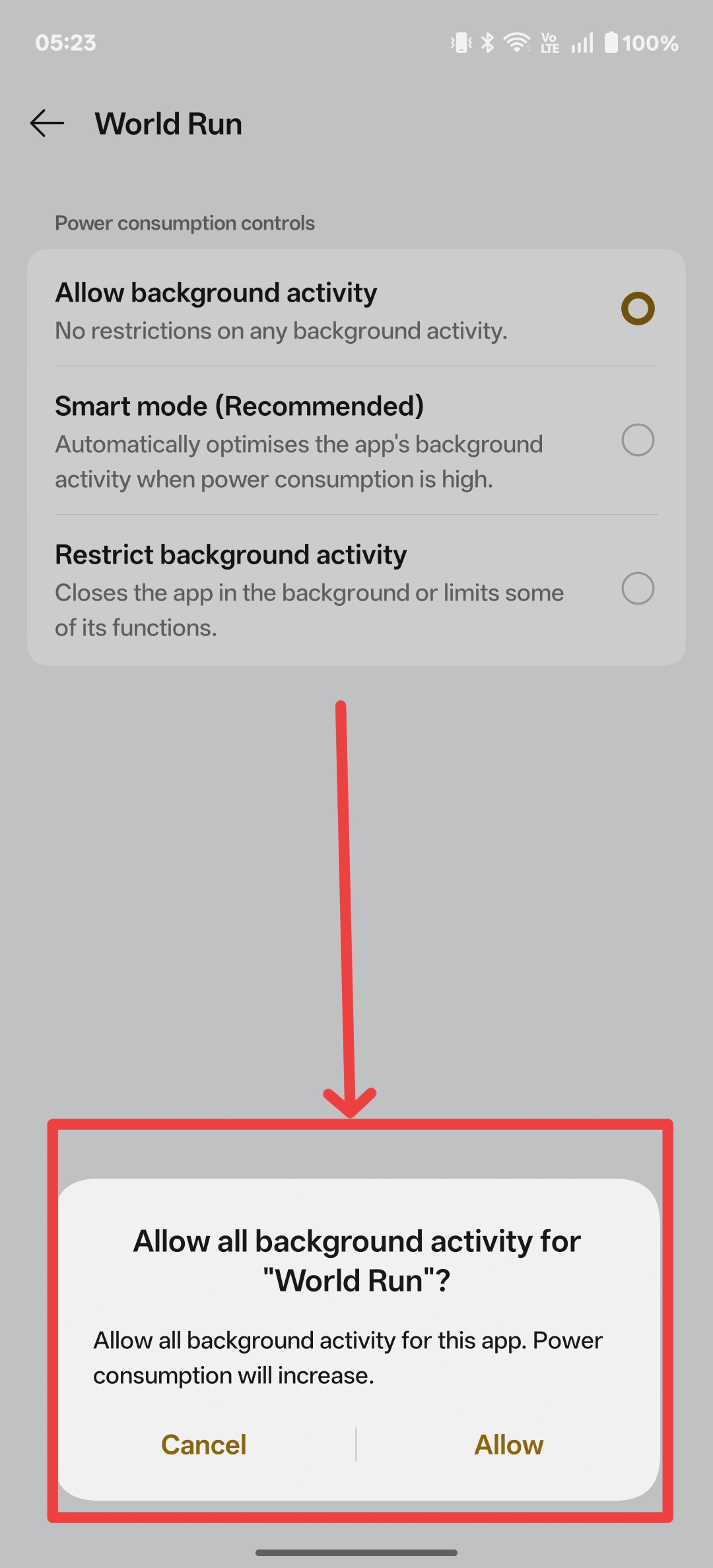
- Critical: A pop-up will appear warning about power consumption; tap Allow to confirm.
- Optimize Battery Usage:
- Go to Settings > Battery > More settings > Optimize battery usage.
- Find World Run in the list and select Don’t optimize.
APP MANAGEMENT & LOCKING
Prevent the system from “cleaning” the app during the race:
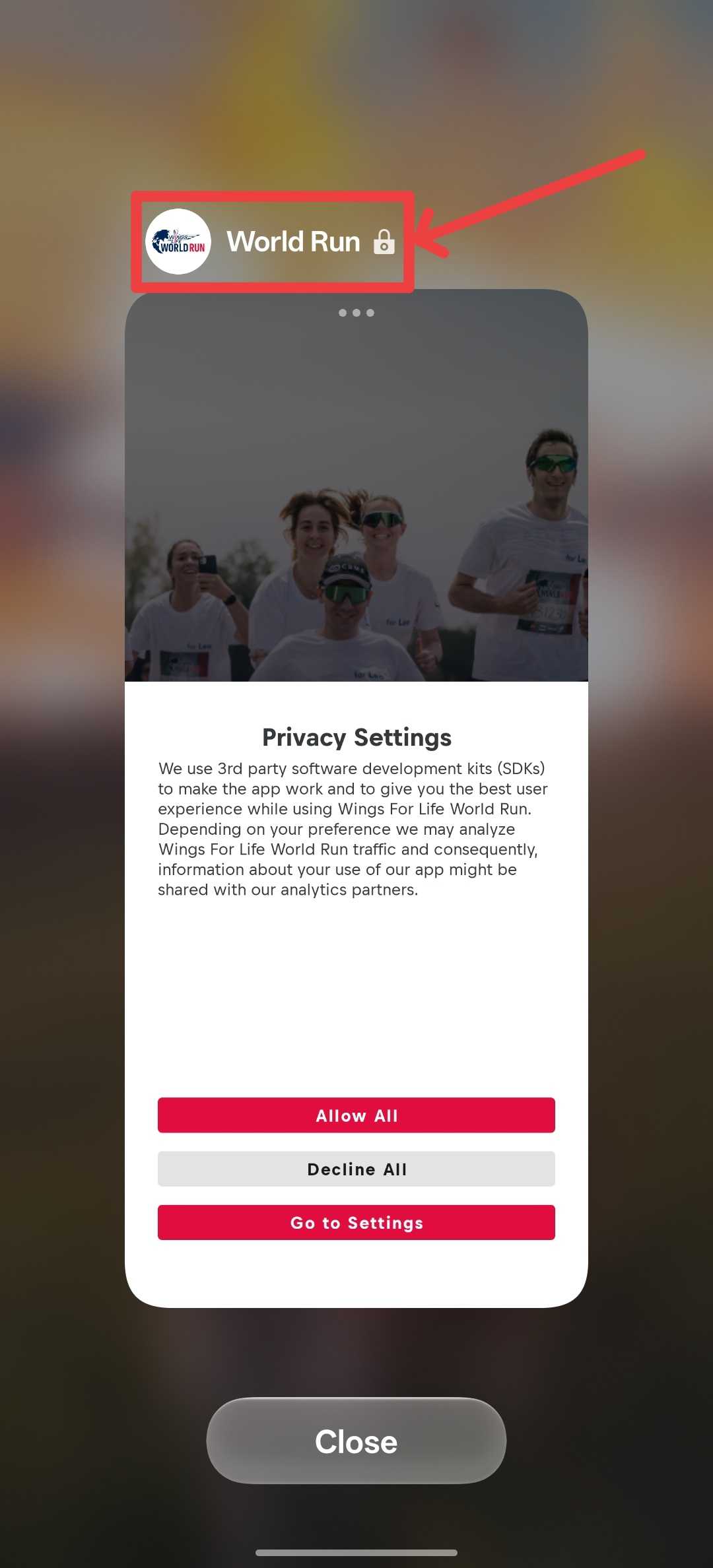
- Lock the App in Task Manager:
- Open the World Run app.
- Swipe up and hold (or tap the Square button) to enter the Recent Apps view.
- Tap the three dots (⋮) or the App Icon in the top right corner of the World Run preview.
- Select Lock. You will see a padlock icon appear.
- Disable App Hibernation:
- In the App Info page for World Run, scroll to the bottom.
- Ensure the toggle for “Remove permissions and free up space” (or “Pause app activity if unused”) is turned OFF.
Pro-Tips for OnePlus Users in 2026:
- High Performance Mode: If you experience GPS "jitter" or lag, go to Settings > Battery > More settings and enable High performance mode during the race.